Retail Site Selection with CARTO Workflows and Snowflake: A Technical Tutorial


Retail location strategy is one of the most critical decisions in the CPG and retail industries. Select the wrong location, and you risk wasting capital on infrastructure, inventory, and staffing. Choose wisely, and you unlock new markets with minimal competition and high customer accessibility.
Yet many retail organizations still rely on legacy approaches: manual site assessment, anecdotal market knowledge, and spreadsheet-based analysis. These methods are slow, error-prone, and fail to leverage the rich geospatial and demographic data now available in cloud data warehouses like Snowflake.
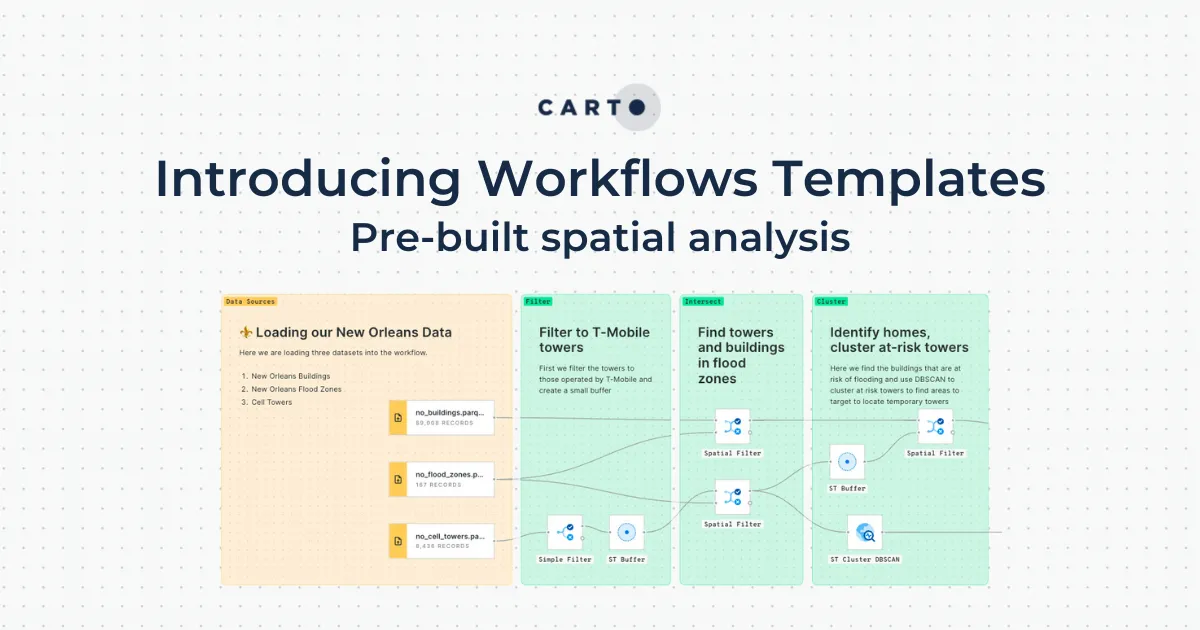
In this tutorial, we'll walk you through a modern, data-driven approach to retail site selection using CARTO Workflows connected to Snowflake. We'll cover connecting your data, enriching it with spatial analysis (isochrones and trade areas), and visualizing the results in CARTO Builder for stakeholder-ready decision making.
What You'll Need
- A CARTO account with Workflows enabled. Sign up for a free 14-day trial if you don't have one.
- A Snowflake account with sample retail and demographic data. (We'll use publicly available datasets for this tutorial.)
- CARTO Data Observatory subscription for demographic enrichment. This is optional but recommended for production use cases.
- Basic SQL knowledge. Workflows includes visual components, but we'll be writing some SQL for custom logic.
- Understanding of retail metrics: foot traffic, population density, competitor proximity, and accessibility.
The Workflow: Four-Step Process
Our approach will follow this architecture:
- Connect Snowflake: Set up CARTO's connection to your Snowflake instance and ingest candidate retail locations and demographic tables.
- Spatial Enrichment: Use CARTO Workflows to calculate isochrones (travel time zones) and trade areas around candidate sites, then enrich with population and demographic data.
- Spatial Analysis: Score and rank candidate locations based on accessibility, population density, and competitor proximity.
- Visualization: Build interactive maps in CARTO Builder to communicate findings to stakeholders.
Step 1: Connect Snowflake to CARTO
First, set up a connection from CARTO to your Snowflake instance. This allows Workflows to query your data and write results back to your warehouse.
- In your CARTO Workspace, navigate to Connections (under Data > Connections).
- Click + New Connection and select Snowflake.
- Provide your Snowflake connection details:
- Account identifier (e.g.,
xy12345.us-east-1) - Username and password (or OAuth token, if preferred)
- Database and schema names
- Warehouse name (ensure it has sufficient compute for spatial operations)
- Account identifier (e.g.,
- Click Test connection to verify. Then Save.
Your Snowflake connection is now live! Any tables in the connected schema will be discoverable in CARTO.
Sample Data Structure: For this tutorial, assume you have two tables in Snowflake:
- candidate_locations: ID, store_name, lat, lng, square_footage
- census_demographic_data: geography (H3 cell or address point), population, median_income, age_groups
Step 2: Build Your First Workflow
Now let's create a Workflows template to analyze candidate locations. Start by creating a new Workflow:
- In your CARTO Workspace, navigate to Workflows.
- Click + New Workflow > Blank Workflow (or select a template if available).
- Name it "Retail Site Selection - Multi-Criteria Analysis".
Now let's add components to the workflow. Workflows uses a node-and-connector visual paradigm where each node represents a step in your analysis.
Component A: Load Candidate Locations
- Drag a Table node from the left panel into the canvas.
- Click on it and select your Snowflake connection and the candidate_locations table.
- This loads all candidate store sites into the workflow.
Component B: Calculate Isochrones
An isochrone is a polygon representing all areas reachable from a point within a specified travel time. This tells us the potential market catchment for each candidate location.
- Drag an Isochrone node into the canvas and connect it to your candidate locations node.
- Configure the isochrone:
- Travel mode: "car" (for most retail)
- Travel time: 5, 10, and 15 minutes (three rings to show accessibility)
- Output: Generate a polygon for each candidate and time interval
Isochrones instantly show you the accessible population around each candidate site. A larger, denser 5-minute isochrone signals strong walk-up potential and reduces customer travel friction.
Component C: Calculate Trade Area & Population Summary
Next, we'll use the isochrones to summarize population within each catchment:
- Add a Spatial Join node. Connect it to your isochrone output and your census demographic data table.
- Configure the join to aggregate population and other demographics (median income, age distribution) within each isochrone polygon.
- Output: A table where each candidate location now has columns like "population_5min", "population_10min", "population_15min", etc.
Why this matters: Population density within travel time is a leading indicator of retail success. High foot traffic and strong spending power within a 5-10 minute radius typically correlates with store performance.
Component D: Competitor Analysis
No site analysis is complete without understanding competitive landscape. Add another Spatial Join to assess competitor density:
- Load a table of existing_competitor_locations (point locations of your own stores or competitor stores).
- Use a Buffer node to create a 1km radius around each competitor.
- Use a Spatial Join to count how many competitor locations fall within the isochrone of each candidate site.
- Output: A field "competitor_count_5min" showing market saturation.
Component E: Scoring & Ranking
Now we'll synthesize all signals into a single location score:
- Add a SQL node to the workflow (optional but recommended for complex logic).
- Write SQL to compute a composite score. For example:
SELECT
  candidate_id,
  store_name,
  lat,
  lng,
  population_5min,
  population_10min,
  competitor_count_5min,
  -- Composite scoring logic
  (population_5min / 1000) * 0.4 +  -- 40% weight to 5min population (normalized)
  (population_10min / 2000) * 0.3 +  -- 30% weight to 10min population
  (CASE WHEN competitor_count_5min = 0 THEN 10 ELSE MAX(0, 10 - competitor_count_5min) END) * 0.3  -- 30% penalty for competitor proximity
  AS location_score
FROM enriched_candidates
ORDER BY location_score DESC
This scoring logic weights population accessibility heavily (70% combined) while penalizing high-saturation markets (30%). Adjust weights to match your business model.
Step 3: Run the Workflow & Store Results
Once your workflow is assembled:
- Click Run Workflow at the top right.
- Monitor the execution in the status panel. Most spatial operations execute in seconds to minutes depending on candidate volume.
- Upon completion, CARTO will prompt you to save the results back to your Snowflake warehouse. Choose a new table name like "retail_site_analysis_results".
Your Snowflake table now contains all enriched candidate locations with spatial metrics and a final score. You've transformed raw data into actionable intelligence.
Step 4: Visualize in CARTO Builder
Now comes the critical stakeholder communication step. Use CARTO Builder to create an interactive map:
- In your CARTO Workspace, click Maps > + New Map.
- Add your "retail_site_analysis_results" table as a layer.
- Style the candidate locations by location_score using a color ramp:
- Red/orange = High-opportunity sites (score > 7)
- Yellow = Moderate opportunity (score 5-7)
- Gray = Lower priority (score < 5)
- Add a second layer showing the isochrones (5-min travel time) as semi-transparent polygons to visualize catchment areas.
- Create Pop-ups on candidate locations that display:
Store Name: [store_name]
Location Score: [location_score]
5-Minute Population: [population_5min]
10-Minute Population: [population_10min]
Median Income (5min): [median_income_5min]
Competitors Nearby: [competitor_count_5min]
- Add widgets to filter by score range or competitor count, allowing stakeholders to self-serve explore the analysis.
- Share the map via CARTO's sharing interface (public link, organization, or specific users).
Best Practices for Production Workflows
Validation & Testing: Before running against 500 candidate sites, test your workflow on a small sample. Spot-check results against known market realities.
Iterative Scoring: Location scoring is rarely perfect on the first try. Work with store operations and commercial teams to calibrate weights. Some markets favor foot traffic; others prioritize median income. Adapt your model.
Data Freshness: Demographic data and competitor locations change frequently. Set up a schedule to refresh your Snowflake tables monthly or quarterly, then re-run the workflow to keep analysis current.
Scalability: Workflows handles hundreds to thousands of candidate sites efficiently. For very large analyses (10,000+ sites), partition your workflow to process in batches and union the results.
Documentation: Add descriptive names and comments to workflow nodes explaining each step. Future team members (and your future self) will thank you.
Common Extensions
Add demographic segmentation: If you have household-level income or lifestyle data, enrich your isochrones to reveal whether a location serves affluent, budget-conscious, or mixed-income shoppers.
Incorporate foot traffic data: If you have mobile location data or foot traffic counts, add these as signals. High actual foot traffic near a candidate site is gold.
Model cannibalization: For expanding retailers, compute overlap between new candidate catchments and existing store catchments to flag sites that will cannibalize existing revenue.
Temporal analysis: If you have time-series data (seasonal trends, weekend vs. weekday foot traffic), add temporal filters to capture market dynamics.
Conclusion: From Data to Decisions
Retail site selection powered by cloud data and spatial analysis is no longer a luxury—it's a competitive necessity. By connecting Snowflake to CARTO Workflows, you've built a repeatable, scalable system to evaluate locations faster and with higher confidence than manual methods.
The workflow you've built today can be:
- Reused: Run it on new candidate sites monthly without rebuilding from scratch.
- Shared: Export your workflow template to share with regional managers or franchisees.
- Evolved: Continuously improve scoring weights based on actual store performance data.
Ready to get started? Explore CARTO Academy for step-by-step video guides and ready-to-use workflow templates for retail site selection. You can also request a live demo with our geospatial experts to see this in action and discuss your specific use case.
Your competitive edge is just one workflow away.